Try the sheet here, on the example
The sheet is open below with sample numbers. Change any white cell and watch the results update, or press the blank-copy button to type your own data from scratch. Nothing you type leaves your browser.
Example from the sheet
| حتى الشهر المحدد | خطة الفترة | الفعلي | الانحراف (لصالحك +) | النسبة |
|---|---|---|---|---|
| الإيرادات | 5,379,000.00 | 5,201,740.00 | -177,260.00 | 96.7% |
| المصروفات | 4,628,000.00 | 4,598,230.00 | 29,770.00 | 99.4% |
| الصافي | 751,000.00 | 603,510.00 | -147,490.00 |
Example from the “ملخص الموازنة” tab (Arabic), with the numbers and formulas that are in the file.
What is inside
- "ملخص الموازنة" (Budget Summary): Revenue, expenses and net up to the selected month (plan, actual, variance and percentage), the full year with its forecast, the number of departments and lines over plan, transactions with no plan, the departments furthest over plan, and a monthly table of cumulative net, with four charts.
- "حسب القسم" (By Department): One table for expenses and one for revenue. For each department: period plan, actual, variance, spend or achievement percentage, status, full-year plan, forecast and share of the year used.
- "حسب البند" (By Line): The same view for each budget line, with total revenue, total expenses and net.
- "الأقسام شهريًا" (Departments by Month): Six tables across the twelve months: expense plan, actual and variance, and revenue plan, actual and variance, for each department.
- "البنود شهريًا" (Lines by Month): Plan, actual and variance of each line in every month.
- "الخطة" (Plan): One row per department and line with the planned amount for each month from January to December. It shows the type (revenue or expense), the year total and a warning if a row is duplicated. It holds 300 rows.
- "الفعلي" (Actuals): A log of date, department, line and amount. It shows the type and a warning if the department or line is not in the lists or has no plan. It holds 2,000 transactions.
- "القوائم" (Lists): Department names (up to 12), budget lines (up to 20) and the type of each line: revenue or expense.
- "الإعدادات" (Settings): The year, the month you compare up to, and the alert percentages for expenses and revenue.
The file opens on a start tab (“ابدأ هنا”, Start here) that explains how to use it.
What makes it different
You write the plan once at department, line and month level, and record each actual once. Every comparison comes from those two inputs: by month, year to date, by department and by line, plus a year-end forecast that adds what you have already spent to what is left of the plan.
How to use it
- In the "الإعدادات" (Settings) sheet, enter the year, the month you compare up to, and the alert percentages for expenses and revenue.
- In the "القوائم" (Lists) sheet, enter the department or cost center names, then the budget lines and the type of each: revenue or expense.
- In the "الخطة" (Plan) sheet, add a row for each department and line and enter the planned amount for each month from January to December.
- In the "الفعلي" (Actuals) sheet, record each transaction: date, department, line and amount. Warnings appear if the department or line is not in the lists or has no plan.
- Open "ملخص الموازنة" (Budget Summary) for revenue, expenses, net, alerts and the year forecast, "حسب القسم" (By Department) and "حسب البند" (By Line) for detail, and "الأقسام شهريًا" (Departments by Month) and "البنود شهريًا" (Lines by Month) for each month.
Before you start:
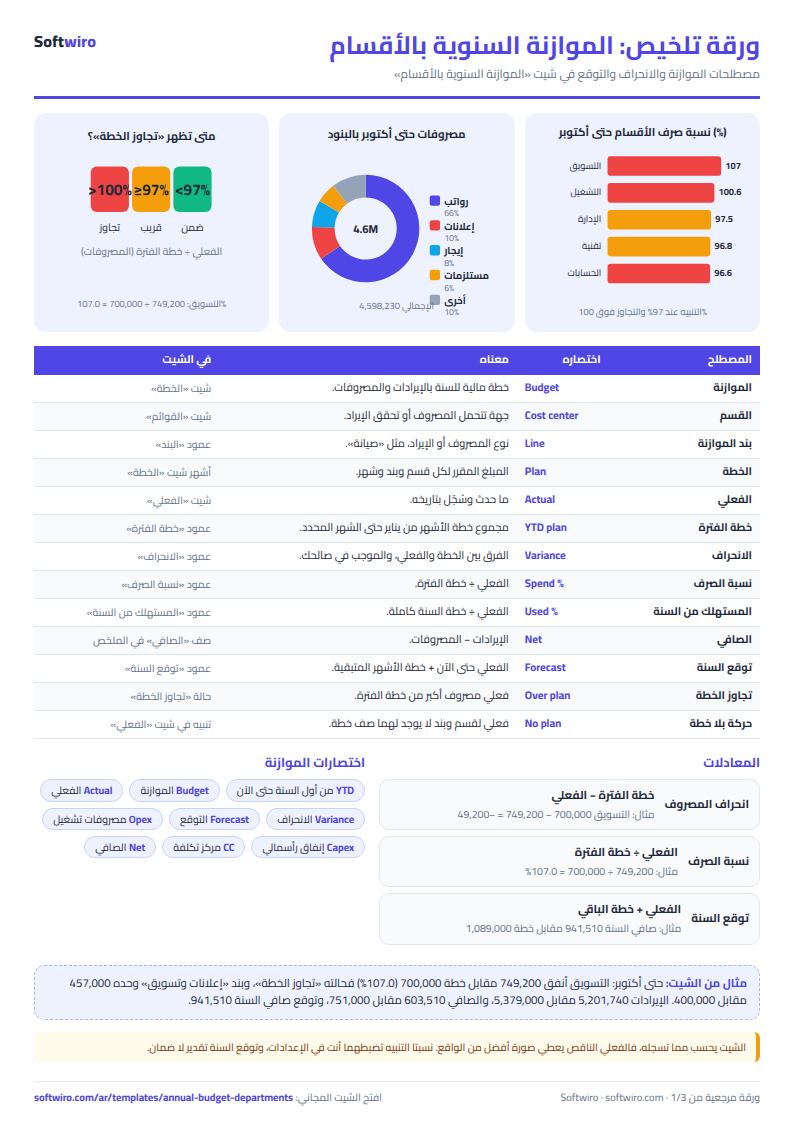
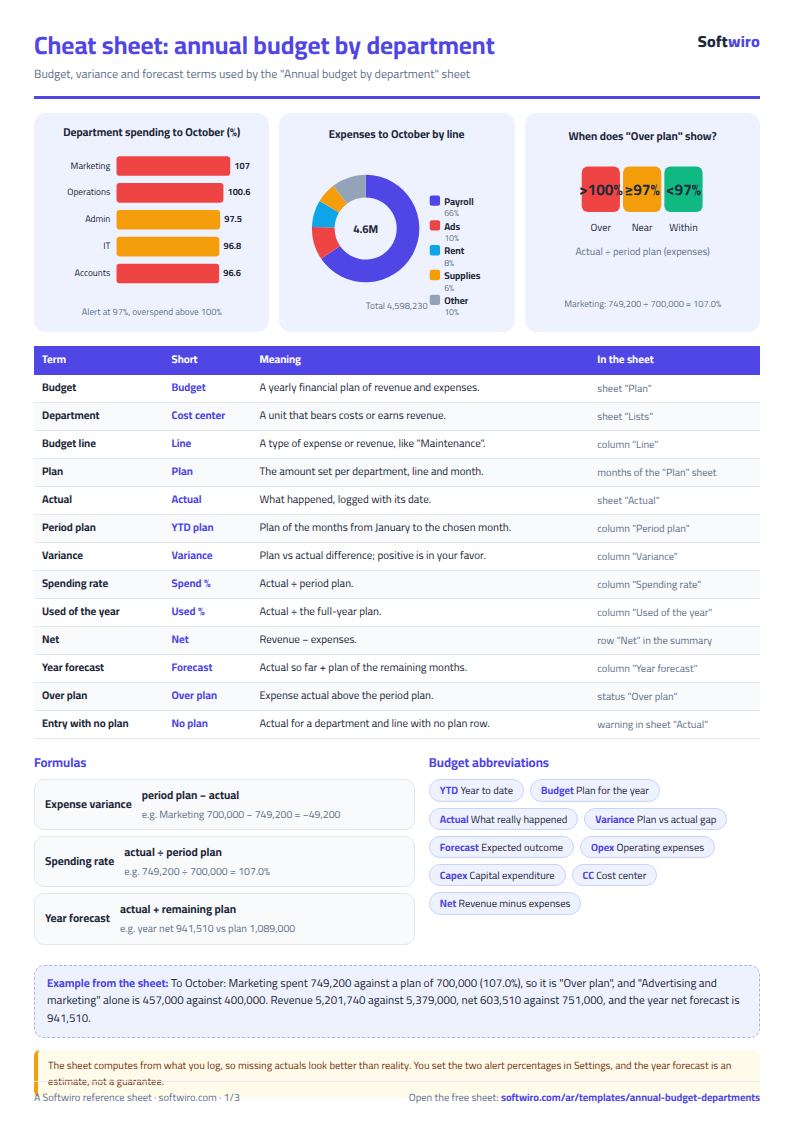
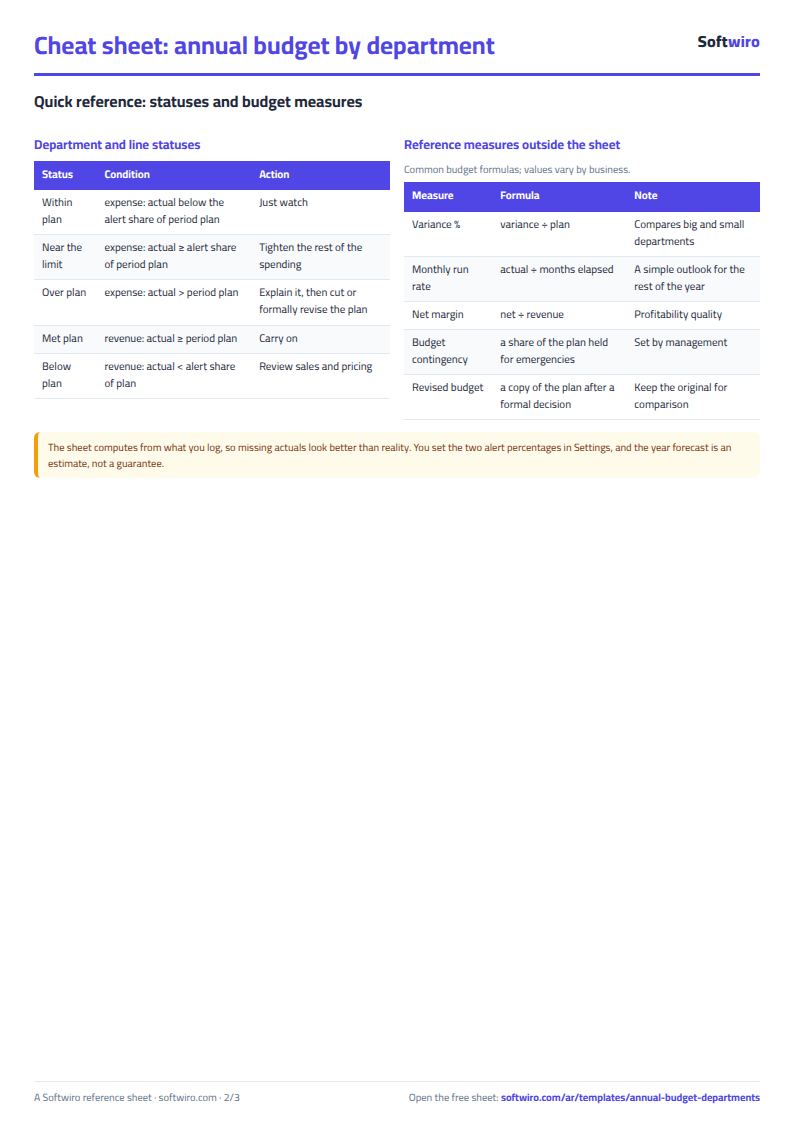
- A positive variance (in your favor) = plan - actual for expenses, and actual - plan for revenue. A negative variance shows in red.
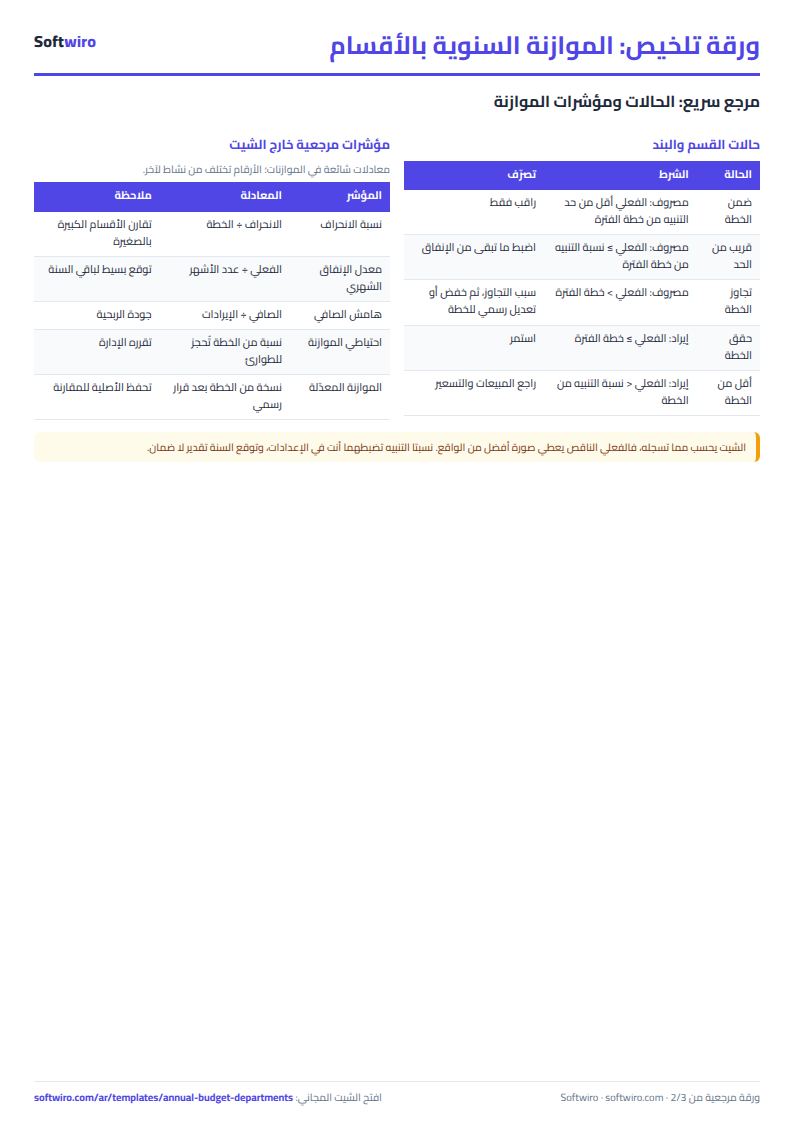
- Expense status: "تجاوز الخطة" (Over plan) if actual exceeds the period plan, and "قريب من الحد" (Near the limit) once it reaches the alert percentage. Revenue status: "حقق الخطة" (Met plan), "قريب من الخطة" (Near plan) or "أقل من الخطة" (Below plan).
- Year-end forecast = actual up to the selected month + plan for the remaining months. Transactions in months after the selected month appear in the monthly tables but are not counted in year to date.
- Spend percentage = actual / period plan. Percentage of year used = actual / full-year plan.
- The sheet holds 12 departments, 20 lines, 300 plan rows (department x line) and 2,000 actual transactions. It counts only transactions of the year entered in "الإعدادات" (Settings).
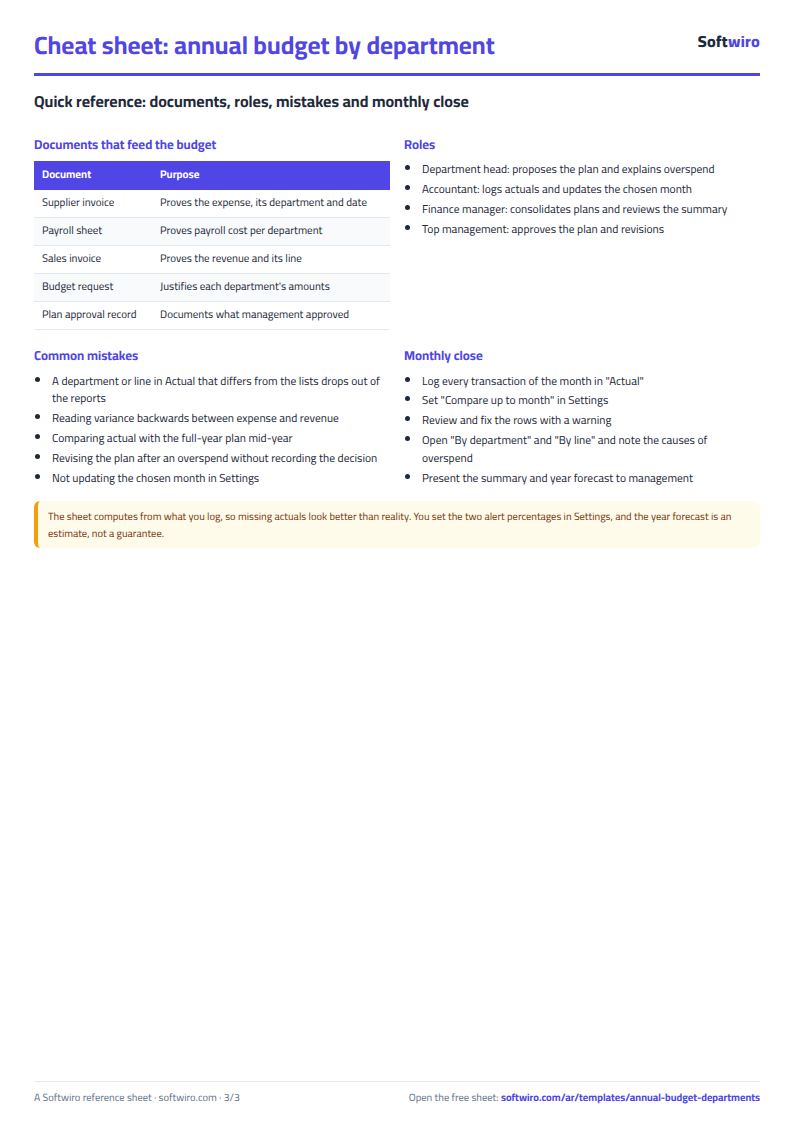
Free cheat sheet for this field
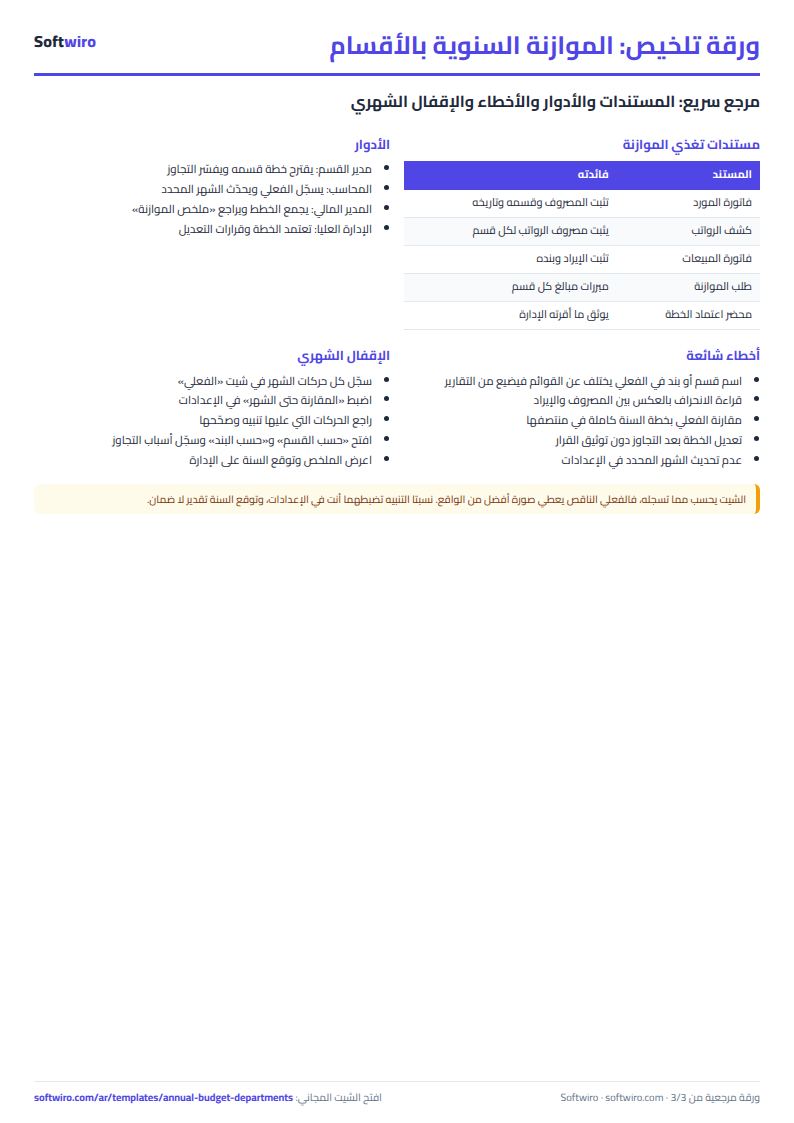
Terms, abbreviations, tables and diagrams over several pages, in Arabic and English. Download it as a PDF or images, including a phone-size version.
Still running this on Excel?
This sheet needs someone to copy every invoice and payment into it. In Accountwiro an invoice and a payment are recorded the moment they happen, and the customer's balance shows in a single statement of account.
| In this sheet | In Accountwiro |
|---|---|
| You copy every invoice and payment into the sheet by hand. | It shows the customer's invoices, payments and outstanding balance in a single statement of account. |
| Invoices are typed or copied by hand. | It creates an invoice by scanning a barcode or searching by product name, calculates discounts and taxes, and sends it to the customer over WhatsApp. |
| Stock shortages are discovered late. | It updates quantities after every sale and alerts you when a product drops below the required level. |
| Anyone who opens the sheet sees every number. | Permissions per user: the sales employee issues invoices, and the warehouse employee manages stock without access to financial data. |
Frequently asked questions
How do I calculate the spend percentage and the variance?
Spend percentage = actual / period plan. A positive variance is in your favor: plan - actual for expenses, and actual - plan for revenue.
How does the sheet forecast the year end?
Year forecast = actual up to the selected month + plan for the remaining months. If you overspent in earlier months, that overspend carries into the forecast.
Can a department have both revenue and expenses?
Yes. A department appears in the expense table and the revenue table, depending on the type of the lines planned for it. A sales department, for example, can have revenue lines as well as salary and travel lines.
What if I record an expense for a department and line that have no plan?
The transaction shows the warning "لا توجد خطة لهذا القسم والبند" (No plan for this department and line). The actual is included in the department total and the line total, but nothing is planned against it, so add a plan row if it was intended.
Is the template free?
Yes, with no sign-up and no email address. Use it, edit it and share it as you like.
Does it work in Google Sheets and on mobile?
The sheet uses formulas supported by Excel 2016 and later, Google Sheets and LibreOffice, so you can upload it to Google Drive and open it with Google Sheets on a computer or a phone.
What is the difference between the white and the gray cells?
You type in the white cells; the gray cells are calculated automatically. Don't type in a gray cell, or you will erase its formula.
Can I use the sheet from an AI assistant?
Yes. Add our MCP server (URL https://softwiro.com/api/mcp, no key needed) to your assistant and ask it to do the calculation in this template. The numbers come from the sheet's own formulas, and we do not store your data. The steps and a ready-made prompt are in this article: https://softwiro.com/blog/mcp-excel-templates-ai-agent-guide.html
More free templates for: Accounting
More free templates
- Journal entries, trial balance and financial statements sheet
- Business expenses and monthly budget sheet
- Cash flow forecast sheet
- Fixed assets register and depreciation sheet
- Accounting rules and equations summary sheet: double entry, statements and financial ratios
- Project budget vs actual sheet
- Simple daily expense sheet (phone-first)
- Multi-warehouse and branch inventory sheet with transfers
- Periodic stock count and count-difference reconciliation sheet
- Restaurant and cafe inventory and waste sheet
- Spare parts inventory sheet
- Barcode, batch and expiry inventory sheet
- Padel and 5-a-side court booking sheet (hourly)