Try the sheet here, on the example
The sheet is open below with sample numbers. Change any white cell and watch the results update, or press the blank-copy button to type your own data from scratch. Nothing you type leaves your browser.
Example from the sheet
| كود الطالب | الاسم الأول | المادة | الدرجة قبل | الدرجة بعد | الحصص المحضورة | فرق التحسن | الحالة |
|---|---|---|---|---|---|---|---|
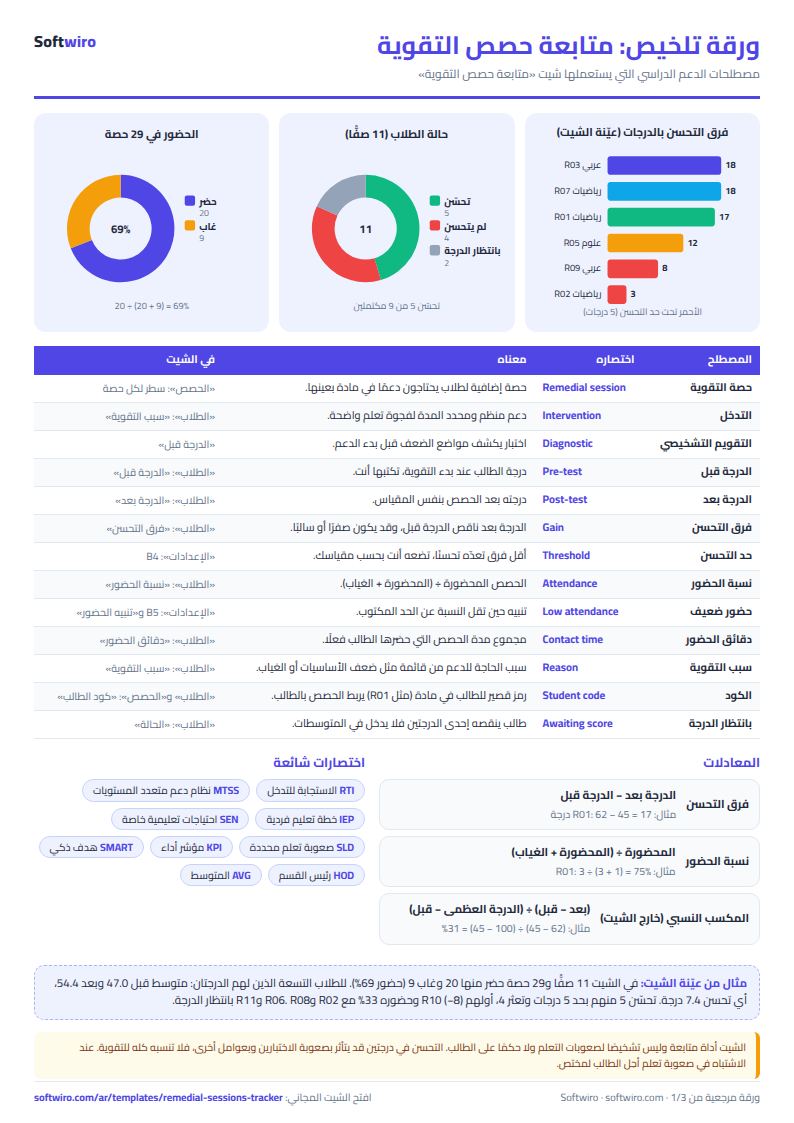
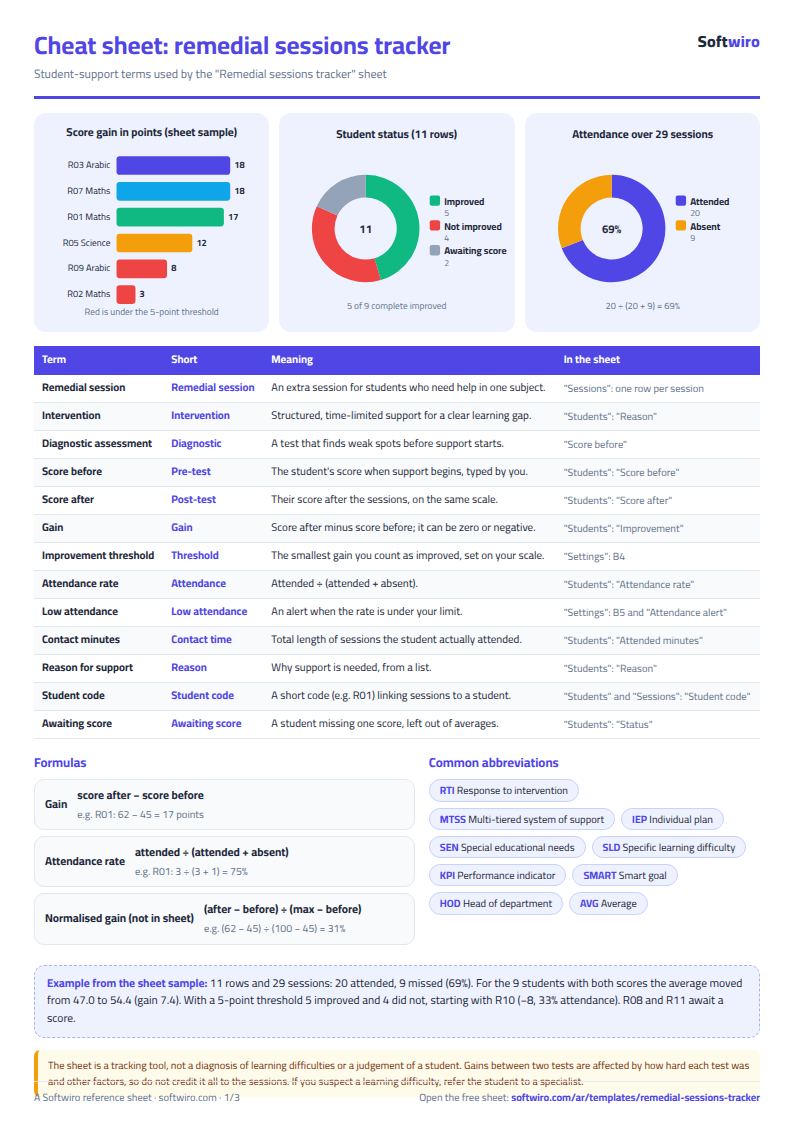
| R01 | أحمد | الرياضيات | 45 | 62 | 3 | 17 | تحسّن |
| R02 | منى | الرياضيات | 50 | 53 | 1 | 3 | لم يتحسن |
| R03 | كريم | اللغة العربية | 40 | 58 | 4 | 18 | تحسّن |
| R04 | سلمى | اللغة الإنجليزية | 55 | 54 | 2 | -1 | لم يتحسن |
| R05 | يوسف | العلوم | 60 | 72 | 2 | 12 | تحسّن |
| R06 | هدى | الفيزياء | 35 | 35 | 1 | 0 | لم يتحسن |
| R07 | عمر | الرياضيات | 48 | 66 | 3 | 18 | تحسّن |
| R08 | نور | اللغة الإنجليزية | 42 | 1 | بانتظار الدرجة | ||
| R09 | ياسمين | اللغة العربية | 52 | 60 | 2 | 8 | تحسّن |
| R10 | مصطفى | الفيزياء | 38 | 30 | 1 | -8 | لم يتحسن |
Example from the “الطلاب” tab (Arabic), with the numbers and formulas that are in the file.
What is inside
- "الإعدادات" (Settings): The smallest score difference that counts as improvement (5 in the example) and the lowest attendance rate before an alert (50% in the example).
- "الطلاب" (Students): One row per student per subject: code, first name, subject, reason for support from a list, score before and score after. The sheet then calculates sessions logged, attended and missed, minutes attended, attendance rate, improvement, status (improved, did not improve, or waiting for score), follow-up rank and an attendance alert.
- "الحصص" (Sessions): The session log: date, student code, length in minutes, attended or absent, and a note. The student's name and subject appear next to each row.
- "للمتابعة" (To follow up): A list of students who did not improve, ordered from least improved (or most declined), with their subject, reason, sessions attended, difference and attendance rate. It holds the first 50 students.
- "الملخص" (Summary): Number of students, how many improved, did not improve or are waiting for a score; sessions logged, attended and missed; attendance rate and minutes attended; average score before and after and the improvement; then a table for each subject.
- "ابدأ هنا" (Start here): The steps, what the cell colors mean and important notes on how the calculations work.
- "لماذا ما زلت على إكسل؟" (Why am I still on Excel?): What a custom program from Softwiro adds if your work grows.
The file opens on a start tab (“ابدأ هنا”, Start here) that explains how to use it.
What makes it different
The sheet answers the questions a teacher has after weeks of remedial sessions. Did the sessions actually help? Which student attended and improved, which did not improve despite attending, and who missed too many? Which subject needs more effort? You type both scores on your own scale, so the sheet invents no numbers, and everything it shows is a calculation from what you recorded. It differs from the tutoring center management sheet, which tracks groups and subscriptions, and from the student attendance sheet, which tracks attendance for a whole class. This one is for a small group that needs support, and the effect on their scores.
How to use it
- In the "الإعدادات" (Settings) sheet, enter the smallest score difference that counts as improvement and the lowest attendance rate at which you want an alert.
- In the "الطلاب" (Students) sheet, add a row for each student in each subject: a code (such as R01) and first name, then choose the subject and the reason for support from the list.
- Enter the "score before" (الدرجة قبل) when the support starts, and the "score after" (الدرجة بعد) when you test the student after the sessions.
- In the "الحصص" (Sessions) sheet, log each session: the date, the student code and its length in minutes, and choose attended or absent.
- The "الطلاب" (Students) sheet calculates sessions attended, attendance rate, improvement and each student's status.
- Open "للمتابعة" (To follow up) to see who did not improve, from least improved, and "الملخص" (Summary) for the figures of each subject.
Before you start:
- Each row in the "الطلاب" (Students) sheet is one student in one subject. A student you support in two subjects is entered in two rows with two different codes.
- Improvement = score after - score before. You type both scores, on the same scale (for example out of 100).
- A student counts as "improved" if the difference reaches the threshold in the settings or more; otherwise the status is "did not improve", even if the difference is zero or negative.
- A student without both scores has the status "waiting for score", and is left out of the score averages and the count of those who did not improve.
- Attendance rate = sessions attended / (attended + absent). The sheet asks for no sensitive data: a first name or a code is enough.
- The sheet holds 200 students and 3000 sessions, and the "للمتابعة" (To follow up) list shows the first 50 students who did not improve.
Free cheat sheet for this field
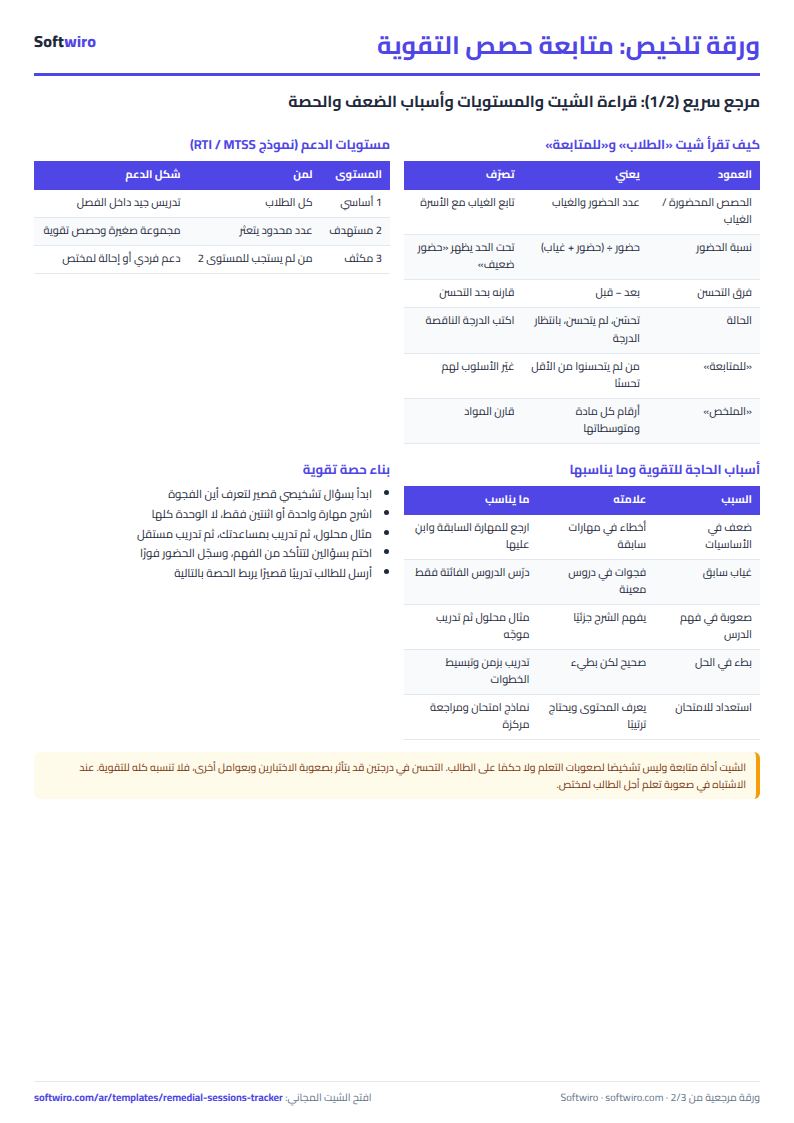
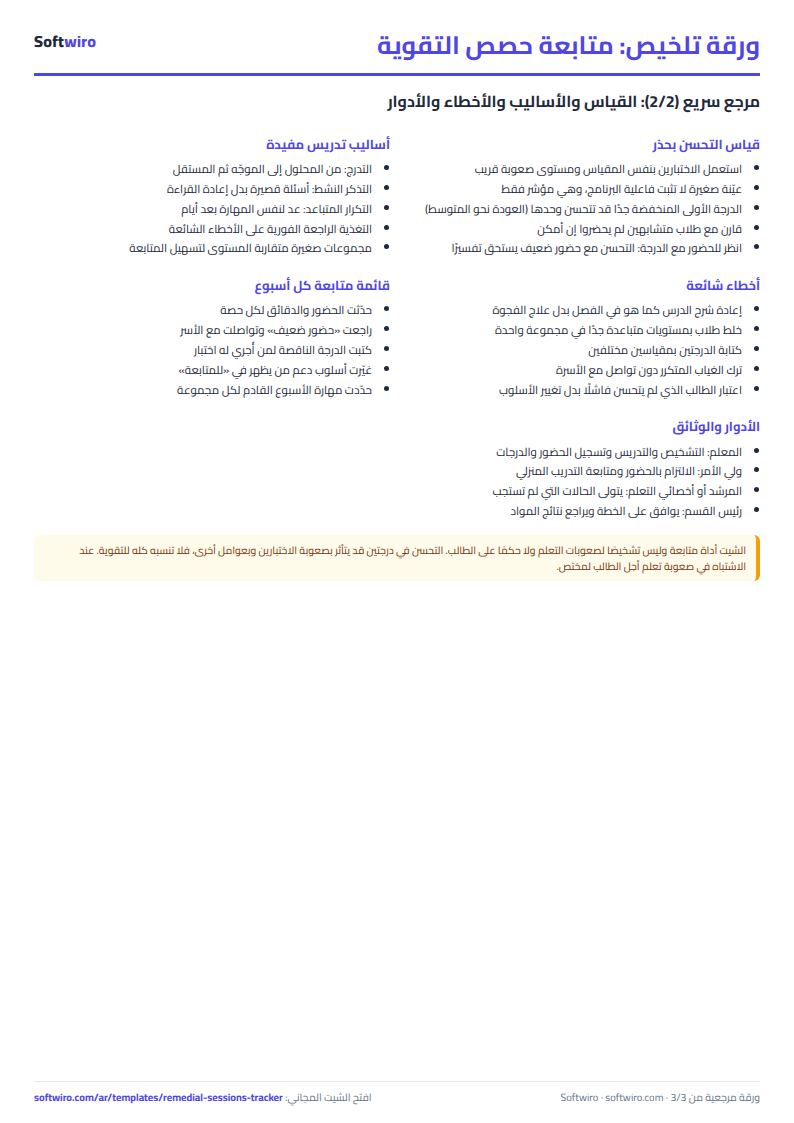
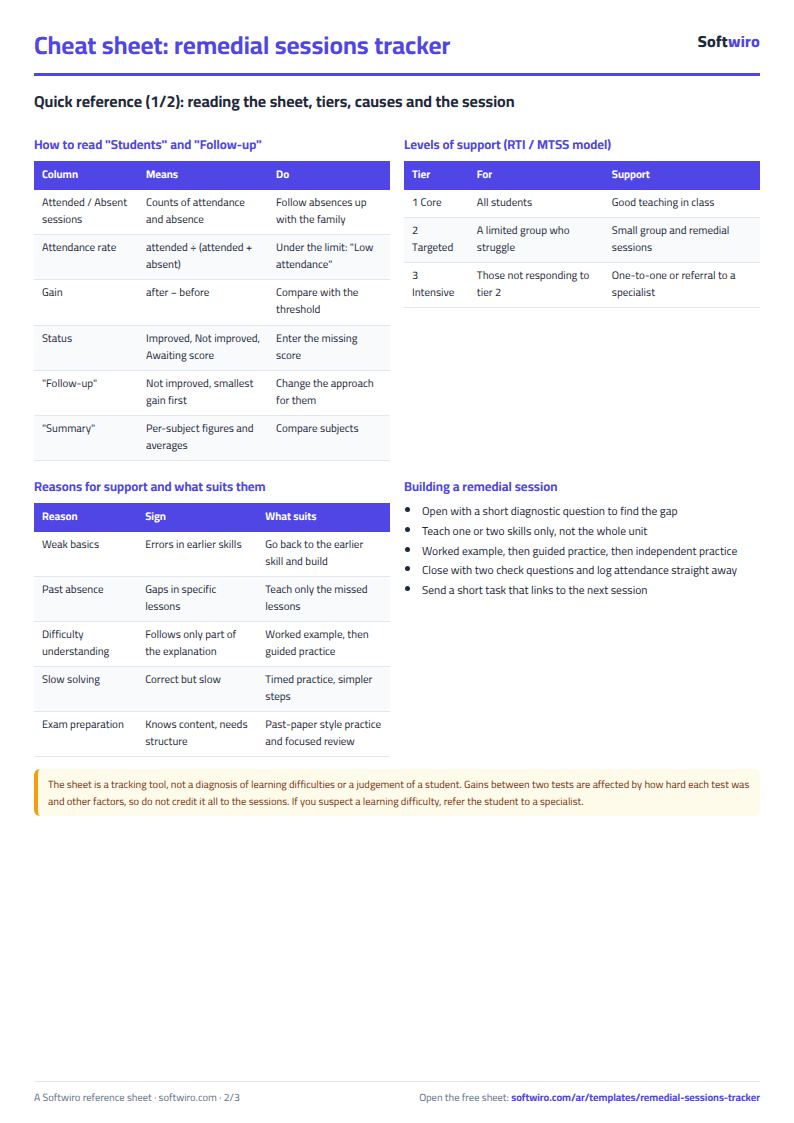
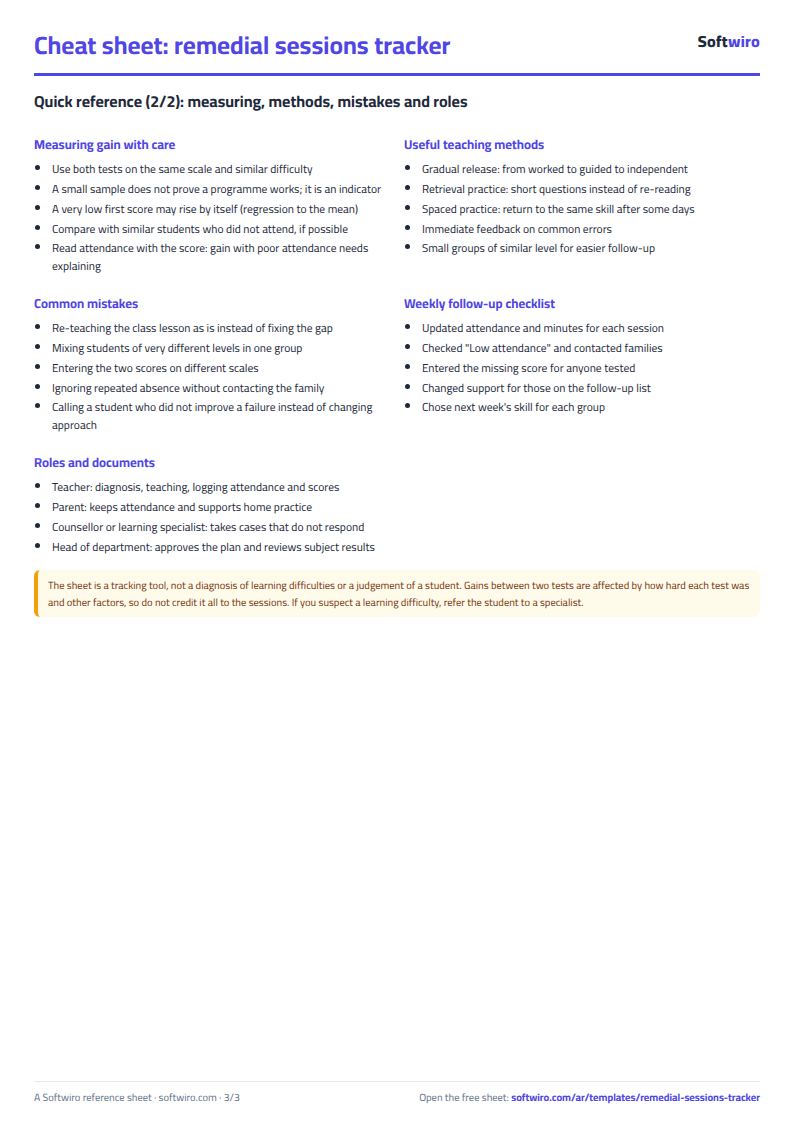
Terms, abbreviations, tables and diagrams over several pages, in Arabic and English. Download it as a PDF or images, including a phone-size version.
Still running this on Excel?
This sheet suits a start and a limited amount of data. If your way of working grows, or you need more than one person working on it at the same time, Softwiro can build you a program that fits the way you work.
| In this sheet | In Custom Software from Softwiro |
|---|---|
| One file that one person edits at a time, and copies reach you on WhatsApp. | A program with a login for each user and permissions you define, and everyone sees the same data. |
| You type everything and check the numbers by hand. | We design the screens around your work steps, so each person records only what concerns them. |
| Columns and formulas are fixed as the sheet was designed. | We build what you need: reports, alerts and screens your way. |
| Backups and security are your own responsibility. | The program runs on a secured server with regular backups. |
Frequently asked questions
How is the improvement calculated?
Improvement = score after - score before, and you type both scores. If either is missing, the student's status is "waiting for score" and they are left out of the averages.
Who counts as "did not improve"?
Anyone whose difference is below the threshold in the settings sheet, whether the difference is small, zero or negative. You can change the threshold at any time and the statuses update automatically.
Should I enter full student names and parent details?
There is no need. The sheet is designed for a first name or a code only, and has no phone number, address or any sensitive detail.
How do I track a student who needs support in two subjects?
Give the student two rows in the students sheet with two different codes, one row per subject, and log the sessions of each subject under its own code.
Is the template free?
Yes, with no sign-up and no email address. Use it, edit it and share it as you like.
Does it work in Google Sheets and on mobile?
The sheet uses formulas supported by Excel 2016 and later, Google Sheets and LibreOffice, so you can upload it to Google Drive and open it with Google Sheets on a computer or a phone.
What is the difference between the white and the gray cells?
You type in the white cells; the gray cells are calculated automatically. Don't type in a gray cell, or you will erase its formula.
Can I use the sheet from an AI assistant?
Yes. Add our MCP server (URL https://softwiro.com/api/mcp, no key needed) to your assistant and ask it to do the calculation in this template. The numbers come from the sheet's own formulas, and we do not store your data. The steps and a ready-made prompt are in this article: https://softwiro.com/blog/mcp-excel-templates-ai-agent-guide.html
All the templates in this group: Excel templates for teachers: gradebook, lesson planning and follow-up
More free templates for: Teachers
More free templates
- Teacher weighted gradebook (Excel)
- Lesson plan and curriculum coverage tracker for teachers (Excel)
- Parent communication log for teachers (Excel)
- Study groups management sheet for a private teacher
- Charity accounts by fund
- Strength workout log
- Running, cycling and swimming log
- Training load sheet for any sport (session-RPE)
- Athlete nutrition and macros sheet
- Football player match stats sheet
- Basketball player game stats
- Swimming times and personal bests