Try the sheet here, on the example
The sheet is open below with sample numbers. Change any white cell and watch the results update, or press the blank-copy button to type your own data from scratch. Nothing you type leaves your browser.
Example from the sheet
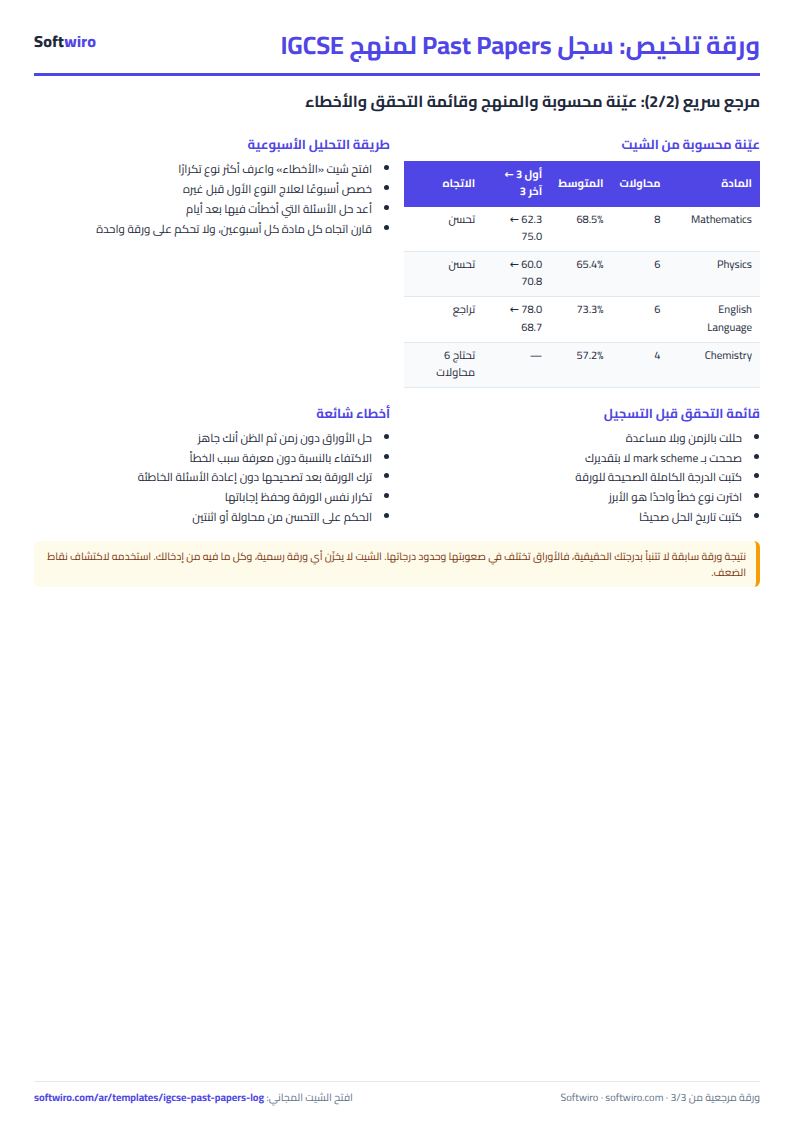
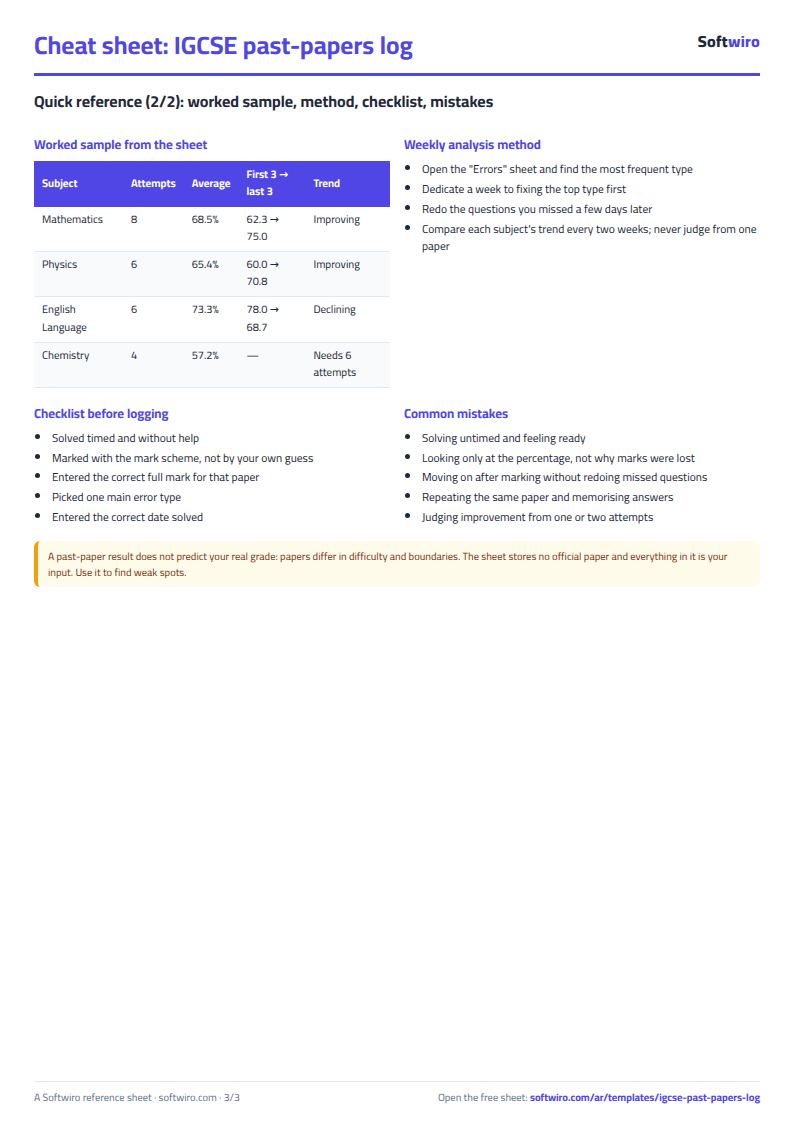
| المادة | عدد المحاولات | متوسط النسبة | متوسط أول 3 | متوسط آخر 3 | الفرق | الاتجاه |
|---|---|---|---|---|---|---|
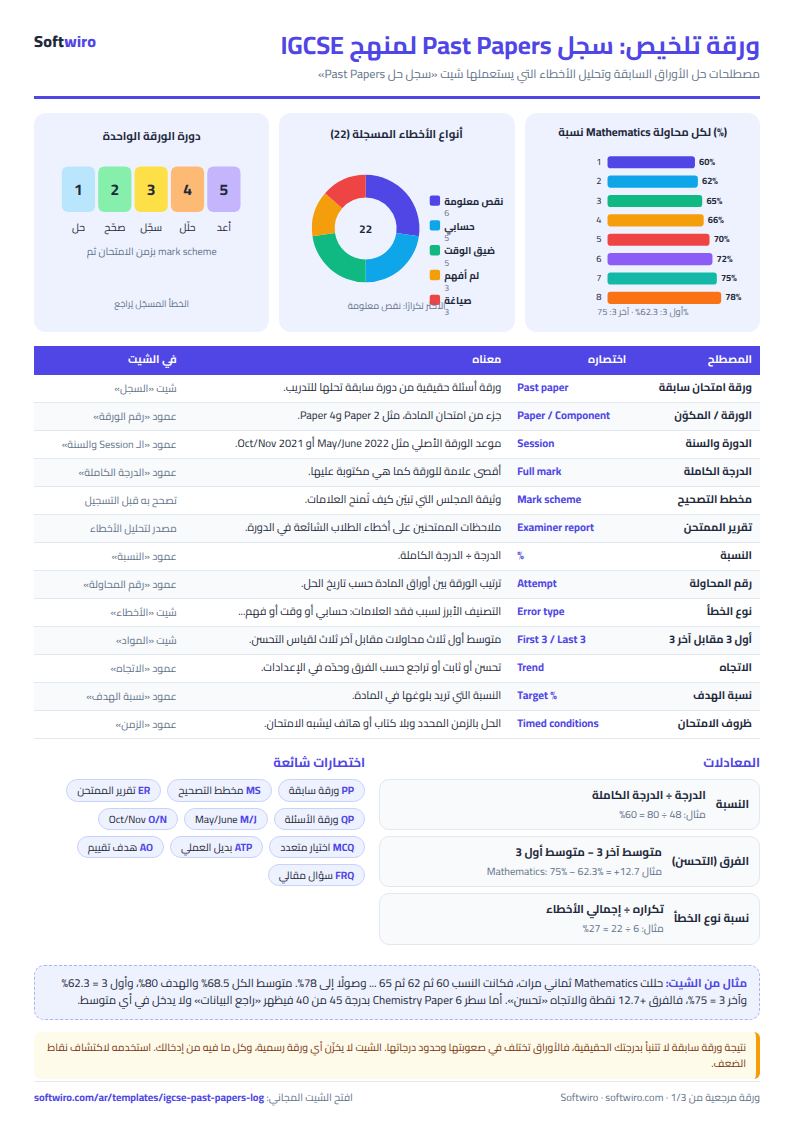
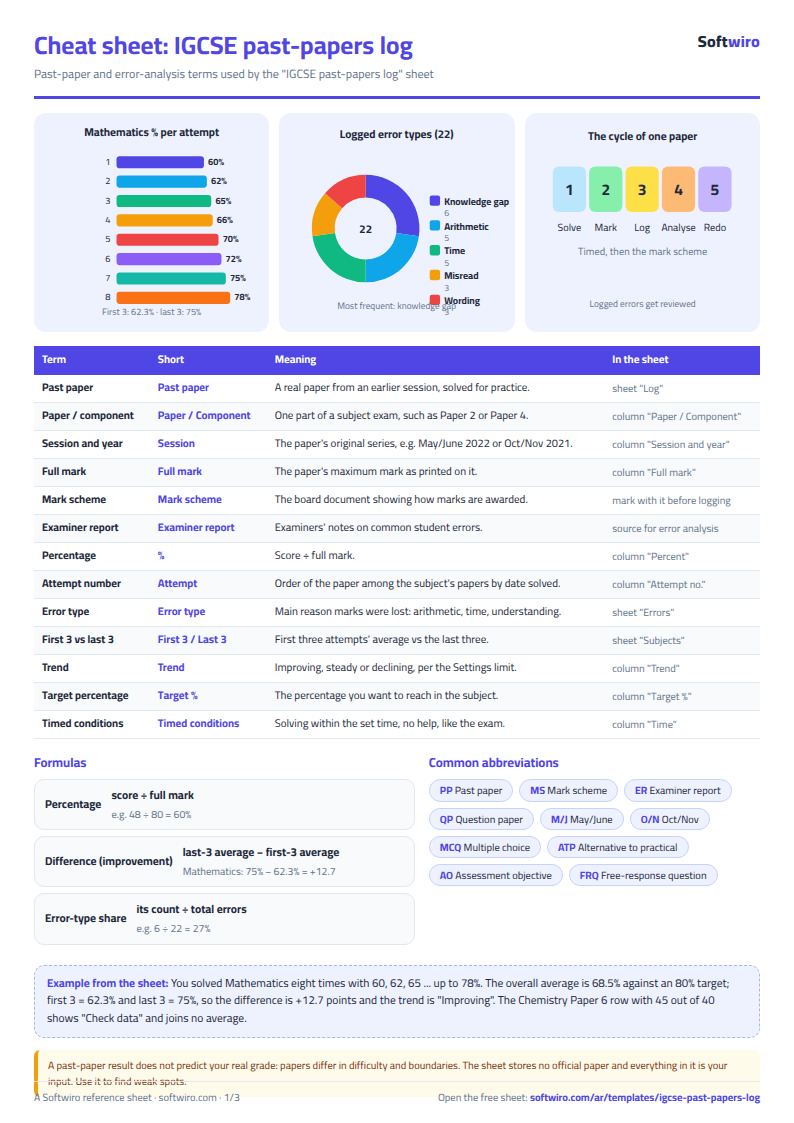
| Mathematics (رياضيات) | 8 | 68.5% | 62.3% | 75.0% | 12.7% | تحسن |
| Physics (فيزياء) | 6 | 65.4% | 60.0% | 70.8% | 10.8% | تحسن |
| Chemistry (كيمياء) | 4 | 57.2% | تحتاج 6 محاولات | |||
| English Language (لغة إنجليزية) | 6 | 73.3% | 78.0% | 68.7% | -9.3% | تراجع |
| Biology (أحياء) | 0 | لا محاولات |
Example from the “المواد” tab (Arabic), with the numbers and formulas that are in the file.
What is inside
- الإعدادات: The smallest difference in percentage points that counts as an improvement or a decline (2% in the example). It is used to judge each subject's trend.
- المواد: Each subject's name and your target percentage, then the number of attempts, average percentage, average of the first 3, average of the last 3, the difference between them, and the trend (improving, declining or steady). It also shows average time, latest percentage, date of the latest attempt, the gap to the target and the number of errors logged. It holds up to 30 subjects.
- السجل: One row per paper: subject, paper, session and year (free text), score, full mark, time, error type, date solved and a note. The sheet then calculates the percentage, the attempt number within the subject and a row check (OK or check data). It holds up to 500 papers.
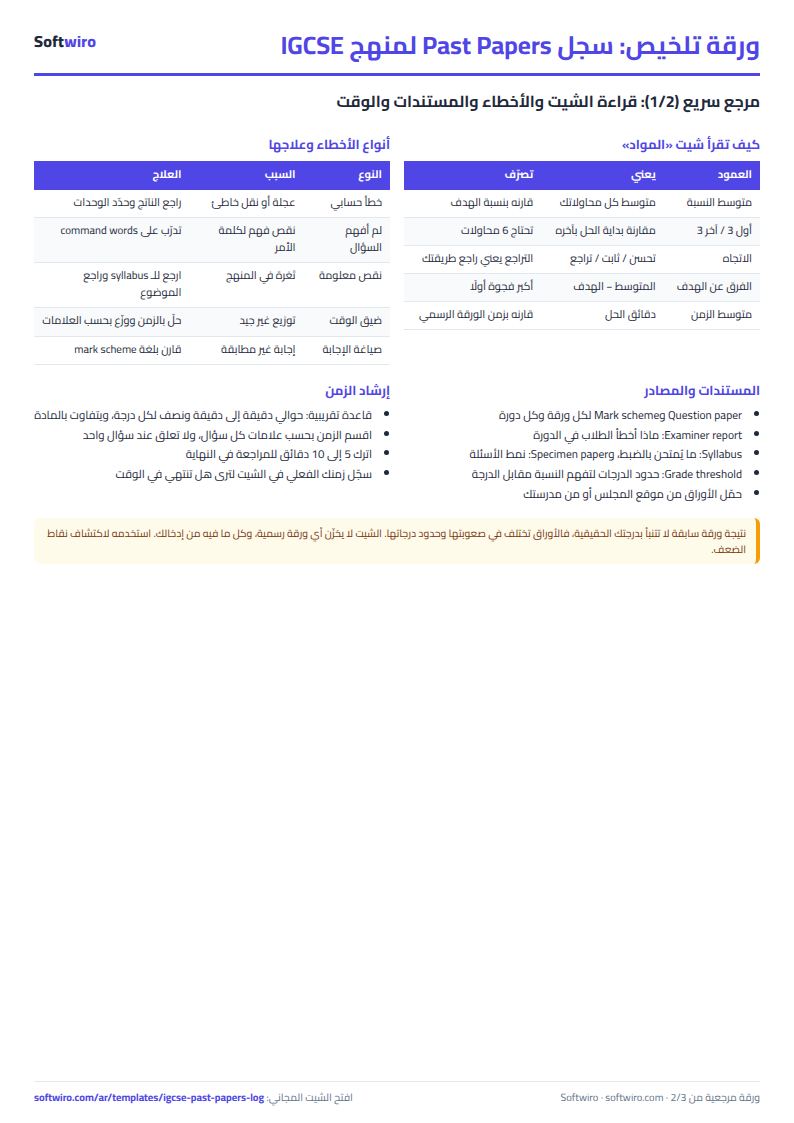
- الأخطاء: A list of error types that you can edit (up to 8), with the count of each type, its share of all errors, its rank, and the most frequent type.
- الملخص: The number of papers counted, the overall average percentage and average time, the subjects with the highest and lowest averages, the number of subjects improving, declining and steady, and the most frequent errors.
The file opens on a start tab (“ابدأ هنا”, Start here) that explains how to use it.
What makes it different
Instead of trying to remember whether you have improved in Mathematics, you open the "المواد" (Subjects) tab and find each subject's average, the comparison of your first 3 attempts with your last 3, and the trend. You open "الأخطاء" (Errors) to see which error type recurs most, so you can direct your next study session at it instead of solving many papers without knowing what is holding you back.
How to use it
- In the "المواد" (Subjects) tab, enter your subject names (for example Mathematics, with an Arabic explanation if you like) and a target percentage for each subject if you want one.
- In the "الأخطاء" (Errors) tab, review the ready-made list of error types and edit it to suit you (up to 8 types).
- In the "السجل" (Log) tab, add a row for every paper you solve: subject, paper, session, score, full mark, time in minutes, main error type and date solved.
- Enter the session and year as free text exactly as written on your paper (for example May/June 2022). The sheet does not validate them.
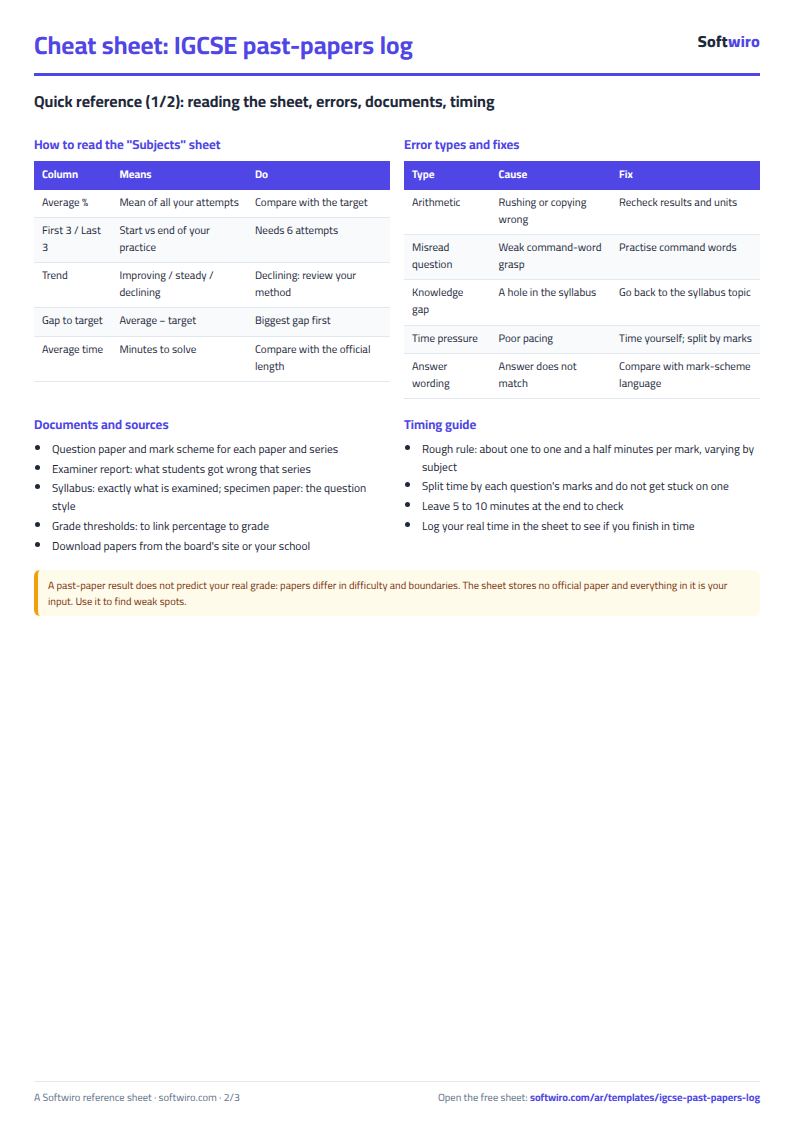
- Open the Subjects tab to see each subject's number of attempts, average percentage, first 3 vs last 3, and the improvement trend.
- Open the Errors tab to find the most frequent error types, and the "الملخص" (Summary) tab for an overview of all your subjects.
Before you start:
- Percentage = score / the paper's full mark. Enter the full mark of each paper as printed on it, since the sheet assumes no number.
- The attempt number is calculated per subject in order of date solved. If two dates are equal, the order of the rows in the log decides.
- The "first 3 vs last 3" comparison needs at least 6 attempts in the subject. Before that, the message "تحتاج 6 محاولات" (needs 6 attempts) appears.
- Trend: "تحسن" (improving) if the average of the last 3 is higher than the first 3 by the amount set in Settings or more, "تراجع" (declining) if lower by the same amount, otherwise "ثابت" (steady).
- A row whose score is higher than the full mark, or that lacks a date, shows "راجع البيانات" (check data) and is left out of every average until you fix it.
- The log holds up to 500 papers and 30 subjects. The subject names and numbers in the example are fictional, and all dates and scores you enter are your own.
Free cheat sheet for this field
Terms, abbreviations, tables and diagrams over several pages, in Arabic and English. Download it as a PDF or images, including a phone-size version.
Still running this on Excel?
This sheet suits a start and a limited amount of data. If your way of working grows, or you need more than one person working on it at the same time, Softwiro can build you a program that fits the way you work.
| In this sheet | In Custom Software from Softwiro |
|---|---|
| One file that one person edits at a time, and copies reach you on WhatsApp. | A program with a login for each user and permissions you define, and everyone sees the same data. |
| You type everything and check the numbers by hand. | We design the screens around your work steps, so each person records only what concerns them. |
| Columns and formulas are fixed as the sheet was designed. | We build what you need: reports, alerts and screens your way. |
| Backups and security are your own responsibility. | The program runs on a secured server with regular backups. |
Frequently asked questions
Does the sheet contain official papers, questions or grade boundaries?
No. It is an empty log where you enter the subject name, paper number, session, year, score and full mark as they appear on your paper. The examples in it are fictional and for illustration only.
How is the first 3 vs last 3 comparison calculated?
The sheet orders each subject's attempts by the date solved, takes the average percentage of the first three attempts and the average of the last three, and subtracts the first from the second. A subject needs at least 6 attempts so the two groups do not overlap. Before that, the message "تحتاج 6 محاولات" (needs 6 attempts) appears.
What does "راجع البيانات" (check data) mean in the log?
Either the score is higher than the full mark, or the score, the full mark or the date is missing. The row stays in the log but is left out of every average until you fix it.
Can I change the error types?
Yes. Edit their names in the "الأخطاء" (Errors) tab (up to 8 types) and the dropdown list in the log changes with them. If you rename a type after using it, update the older rows so its count stays correct.
Is the template free?
Yes, with no sign-up and no email address. Use it, edit it and share it as you like.
Does it work in Google Sheets and on mobile?
The sheet uses formulas supported by Excel 2016 and later, Google Sheets and LibreOffice, so you can upload it to Google Drive and open it with Google Sheets on a computer or a phone.
What is the difference between the white and the gray cells?
You type in the white cells; the gray cells are calculated automatically. Don't type in a gray cell, or you will erase its formula.
Can I use the sheet from an AI assistant?
Yes. Add our MCP server (URL https://softwiro.com/api/mcp, no key needed) to your assistant and ask it to do the calculation in this template. The numbers come from the sheet's own formulas, and we do not store your data. The steps and a ready-made prompt are in this article: https://softwiro.com/blog/mcp-excel-templates-ai-agent-guide.html
All the templates in this group: Excel templates for IGCSE students
More free templates for: IGCSE
More free templates
- IGCSE subject tracker with mock scores and target grades (Excel)
- AP, SAT and ACT prep planner (Excel)
- Al-Azhar student grades sheet (Excel)
- Quran memorization and review tracker (Excel)
- University applications tracker (Excel)
- Teacher weighted gradebook (Excel)
- Lesson plan and curriculum coverage tracker for teachers (Excel)
- Parent communication log for teachers (Excel)
- Remedial sessions tracker for teachers (Excel)